
This article is intended to help Louisiana schools download a roster of the students who have selected their school and understand how to filter for the different statuses they need.
Step 1: Log into your Odyssey School Account
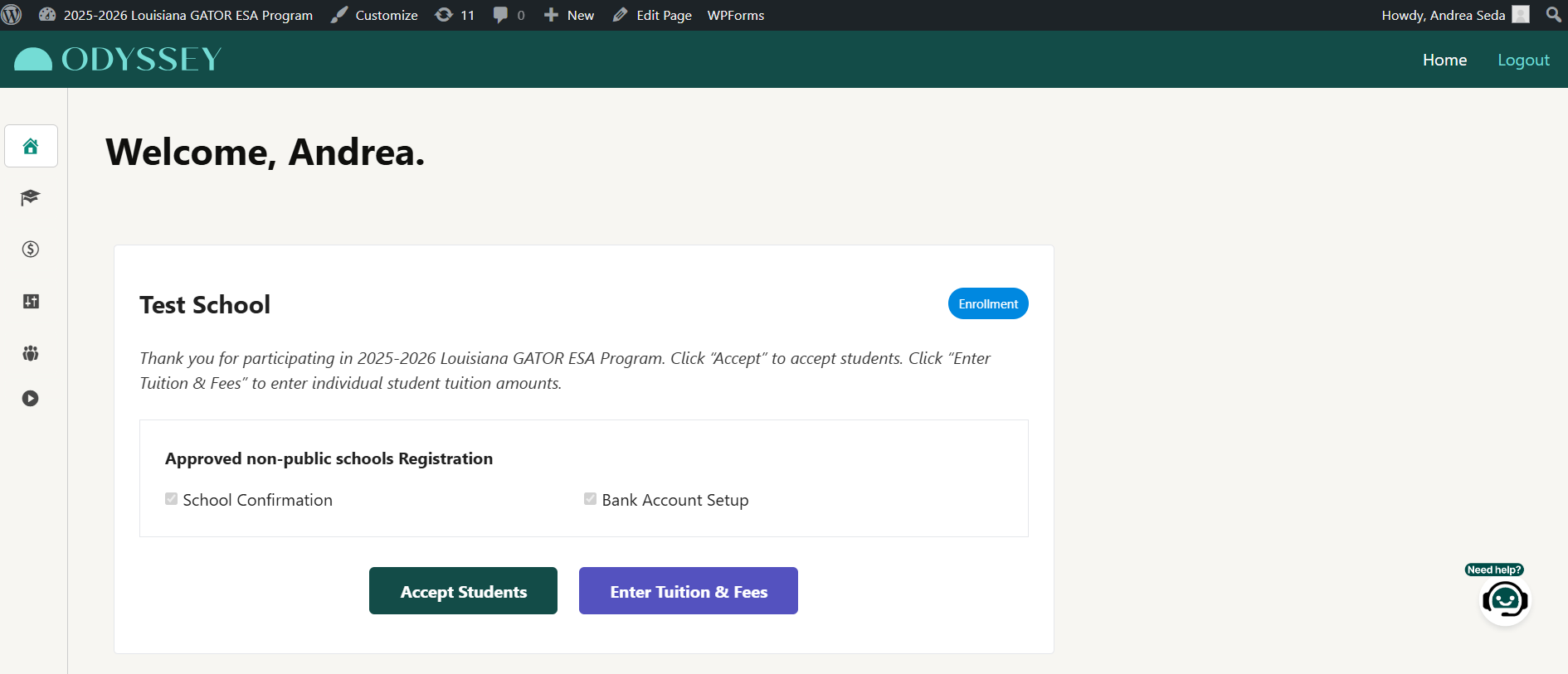
Step 2: Go to the Review Students Section or the Tuition Fees section
You may also click on [Accept Students] or [Enter Tuition & Fees].
Step 3: Click on the [All Students] Tab
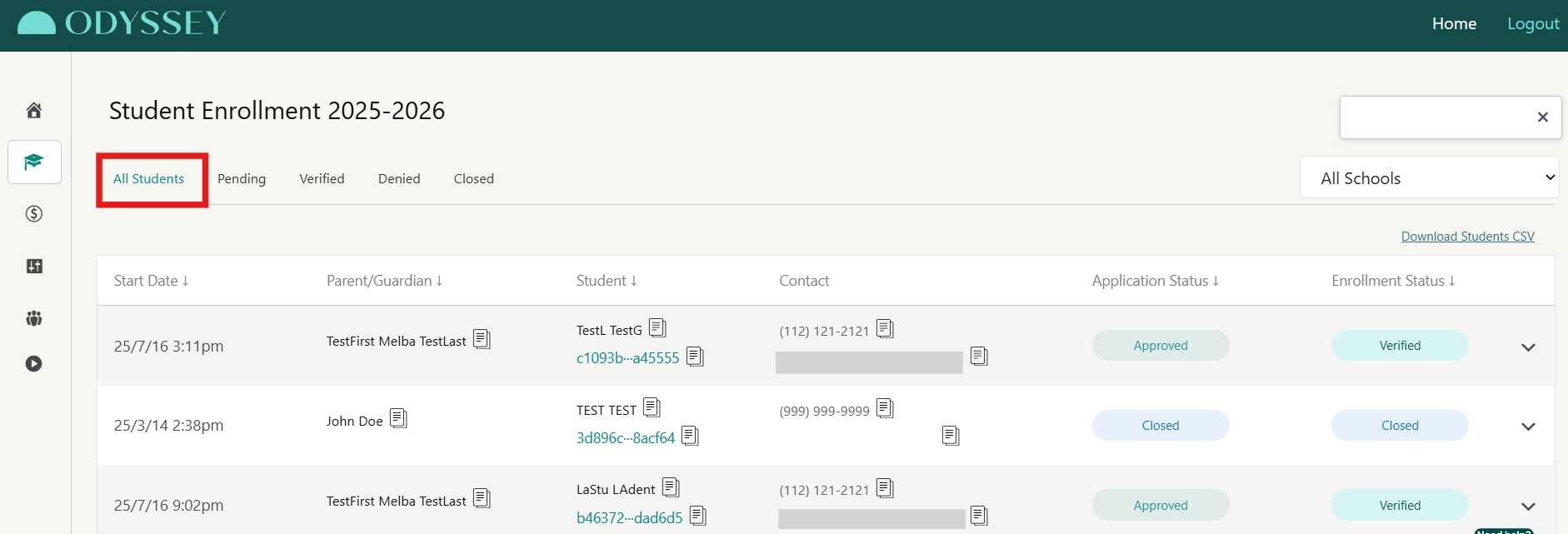
If you wish, you may filter by enrollment status in the [Review Students] section and by tuition payment status in the [Tuition Fees] section. To do so, select the status you're interested in and click [Download CSV]. Please refer to this article to understand the different statuses and their meaning: What Do The Different Statuses On My Account Mean?
Step 4: Click [Download CSV]
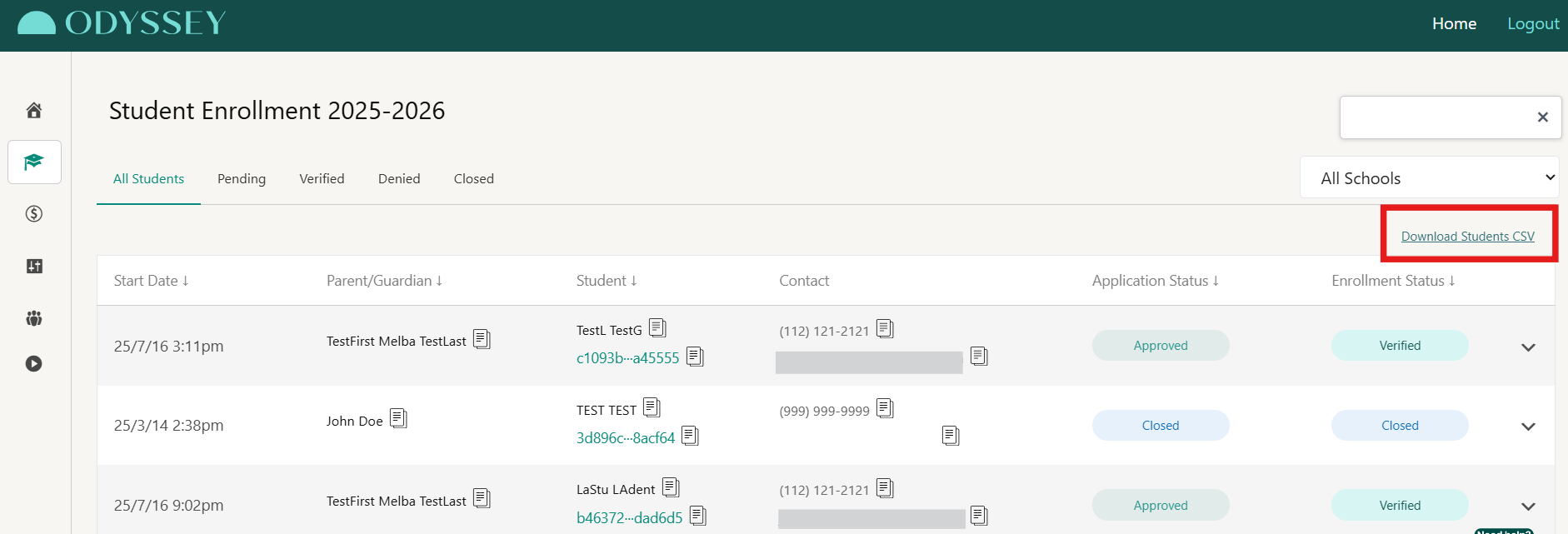
Step 5: Review the downloaded file
Once you have downloaded the file, you may use the filter feature in Excel to identify the specific information you're searching for.
Here are some examples of what can be searched for:
- To know which students will be funded, filter the [student_status] column and search for Approved and Approved-Awaiting Opt-in.
In this example, we don't have any Approved-Awaiting Opt-In students; however, if you have a student with that status, it will be visible. - To know the enrollment statuses for your students, filter the [status] column and search for the specific enrollment you're interested in.
- To know the tuition payment statuses for your students, filter the [annual_tuition_payment_status] column and search for the specific enrollment you're interested in.